Zyxel Firmware upgrade was failed. Please try again
Zyxel Firmware upgrade was failed. Please try again.
Why such a title, and with an obvious fault in it?
Here the story folks :)
I've just bought a third Zyxel GS1200-5HP v2 switch
Why three? Well, one is in another house, and here I needed two in this house in different places. One for an Amcrest camera running on POE, and the other as a 'normal' switch.
After booting into the new one, which by default uses the IP 192.168.1.3 (the other one I had already changed the IP to avoid confusion). Booting into it for the first time, you use the password 1234, but it asks you to change that straight away, which is easy.
Then, as I know this model, I wanted to update the firmware to the latest version. Having done this on the two previous models, I said to myself, easy peasy will only take a couple of minutes. Hah, not this time.
I downloaded the V3 firmware from here, as it was already running V2 and started the update via my browser LibreWolf, as I run Linux on my PCs. (Note the last firmware is from November 2023)
Once again, I've done this twice already on the other two switches, though I was using LibreWolf on my Arch Linux machine. Here, for the moment, I'm running Debian on a small PC.
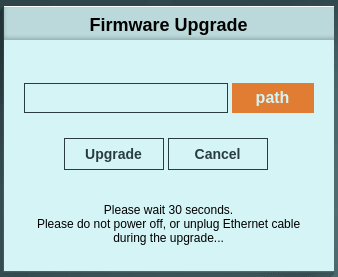
The update started and failed, giving me the message in almost English. Firmware upgrade was failed. Please try again. (Hey Zyxel, how about writing that message correctly).
Now, as I sadly found out, this is bad news, as you can't get out of this message window, and you can't close it. You're stuck there.
So I then downloaded the V2 firmware and tried updating the switch with that.
Once again, as you're stuck on the update window, you do not have any choice but to flash.
Even with the V2 firmware, it again failed. So here I was, stuck on the update/flash window with no other choices and no way to cancel this window.
Reading around, I saw that this happens quite often. I read a couple of articles suggesting:
Try and plug the switch directly to the PC. I did, no luck
Try renaming the .bin file. I did, no luck (the original file is named GS1200-5HP_V2.00(ABKN.2)C0.bin)
Try another browser, Chrome, Chromium, no luck.
Try IE browser in Windows, but I do not have or use Windows, so I couldn't try that.
I was, well and truly stuck. Rebooting the switch. Resetting it, via the pin in the box, didn't help; the browser would just open the same window, expecting the firmware file to upload and flash.
I then came across an article about using 'curl' in terminal.
So I opened a terminal window in the same folder as the firmware (that I had previously unzipped). Attention, this is important.
And tried : curl -F 'firmware=@GS1200-5HP_V2.00(ABKN.2)C0' --output curl.out 'http://192.168.1.3/httpupg.cgi?cmd=fw_upgrade'
I hit enter.
It looked like it was working as it was sending data to the switch; I could see the data scrolling in the terminal as it was being transferred, but after 10 minutes, it gave a timeout failed message. curl: (56) Recv failure: Connection timed out. Dam.
I then had an idea and renamed the very long-named.bin file to just firmware.bin, and tried again. I hit enter.
curl -F 'firmware=@firmware.bin' --output curl.out 'http://192.168.1.3/httpupg.cgi?cmd=fw_upgrade'
It worked, three minutes later, the switch was finally flashed back to the version V2 firmware and working. Phew.

For info, I have tried the same tactic with the V3 .bin file using curl. I don't get an error message, but it doesn't flash. I'm going to ask Zyxel's support about that.
Update. Back on my Arch PC. I tried updating using Chrome rather than Librewolf. It didn't update, and once again. I was stuck on the Firmware window.
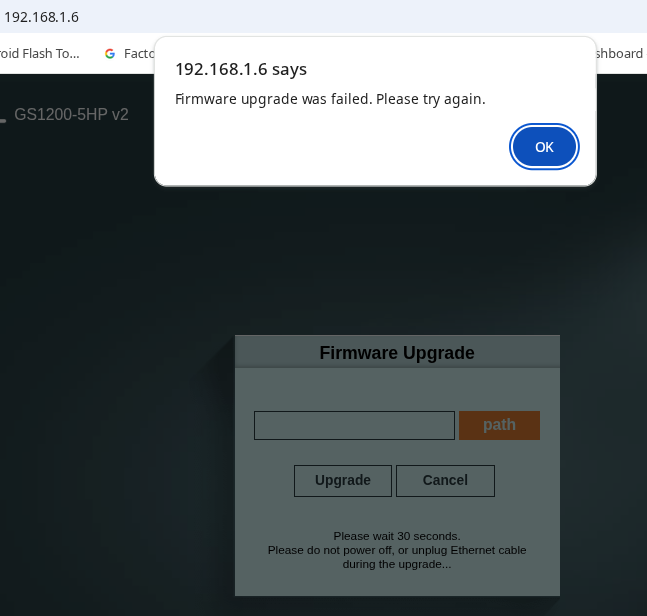
BUT:
I then ran curl in terminal again, after renaming the 200ABKN3C0.bin to firmware.bin (just in case)
After ten minutes, I had the timeout failed message again.
BUT:
I was at least able to log back into the switch. And strangely, I now have V2.00(ABKN.3)C0 running.
This is really very strange. What updated it? I do not know.
The Browser page or the curl command?. It's definitely buggy somewhere.
curl -F 'firmware=@firmware.bin' --output curl.out 'http://192.168.1.6/httpupg.cgi?cmd=fw_upgrade'
  % Total    % Received % Xferd  Average Speed   Time    Time     Time  Current
                                 Dload  Upload   Total   Spent    Left  Speed
100 616208   0     0 100 616208     0   968   0:10:36  0:10:35  0:00:01     05
curl: (56) Recv failure: Connection timed out
GS1200-5HP v2_2.00(ABKN.3)C0]$
Like this post? Buy me a coffee!
Your support means a lot and helps me keep creating useful content ☕😊
https://buymeacoffee.com/minty95
Update December 2025
I received an interesting email from Jörg, who, after reading this post, was able to update his Zyxel.
Here is a summary of his mail, as it could also be useful to anyone updating and having problems.
"After putting the network switch into upgrade mode, I looked at the underlying JavaScript in the Firefox debugger (F12).
In summary, I can say:
The name of the firmware file does not play a role in the error pattern. Even the strange path name “C:\fakepath\” before the file name does not cause any problems. I was able to select my file either from my Linux home directory or from a nested folder structure of a mounted NAS
In my case.
The upgrade would actually take about 45 seconds. Unfortunately, after 40 seconds (default countdown for GS1200-5/8, other variants seem to use different timings), the script reaches the line of code “window.location.replace(‘http://’+location.host)”. This causes the upgrade to abort prematurely, and I end up in the known error loop.
Now there are two options.
Either set a breakpoint on the above line of code and, when it is reached, simply wait another 10 to 15 seconds until a network timeout error occurs. Then refresh the web page. The login screen will appear, and the switch will have been upgraded.
Alternatively, before pressing the upgrade button, you could set the variable “wait_time” in the debugger from 40 to a value between 44 and 59 seconds (however, different time specifications may apply to other Zyxel models). The adjusted seconds are sufficient to either upgrade the device without abort or trigger the equally helpful network timeout error.
Final summary:
Since the steps above may be too complicated for readers who are not IT professionals, here is a summary that has worked reliably for me:
1. Put the device into upgrade mode in the browser.
2. Call up “curl” as described. (The upgrade will be completed in about 35 seconds, much faster than in Firefox.)
3. Do not press the “Cancel” button on the browser page, and do not select a file to upgrade! Just don't touch it!
4. After one minute, the browser page can be refreshed and should then show the login screen. If someone refreshes too early, it will not interfere with the upgrade process. Simply refresh again a little later.
5. “curl” can now be terminated with CTRL + ‘c’, otherwise it will time out after 5 to 10 minutes, which would not be a problem
So there you go, more help if you're having problems. It seems Curl using the terminal is really the best option if using Linux.